How to Use Instructor Led Training
Instructor Led Training is a useful tool used for auto-completing the training status of Users if you choose to watch any courses together at once using a single device. This feature allows any site Administrator to set any course as completed for any other Administrators or Users.
1. Go to your AccuEd Connect site (sitename.accuedconnect.app)
2. Look for Instructor Led Training on the navigation bar on the left-hand side. Click the Record Completion that drops down.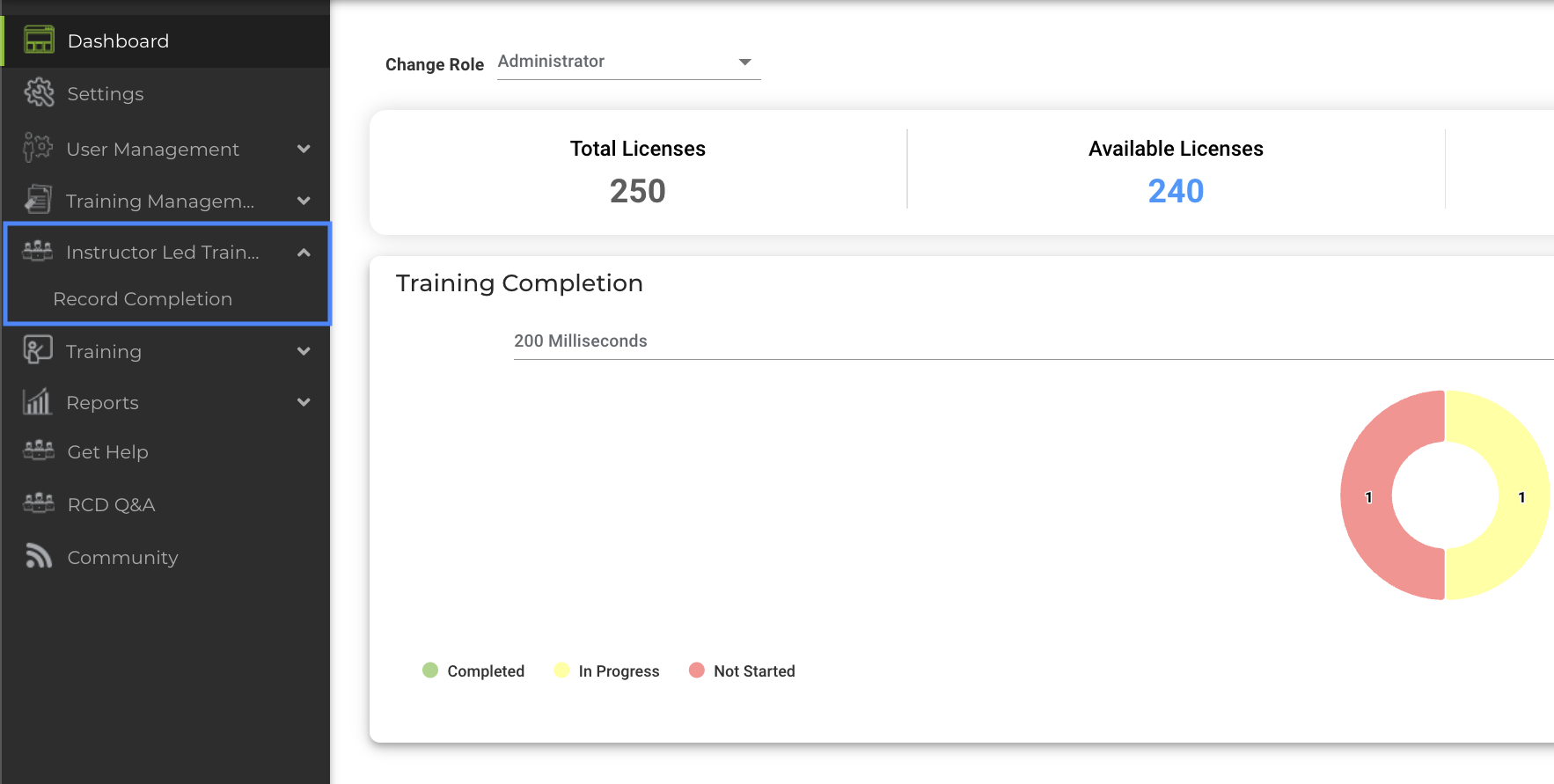
3. Now you will select which course and module. This will show all the Users that have that course assigned.
4. Once you can see the list of users, you will click the box next to each name
5. You can choose any number of Users to set completion. Click on the green Set Course Completion
6. From here to can set any course module as Completed or In Progress, then choose the date you want it to be completed on, and finally click Submit.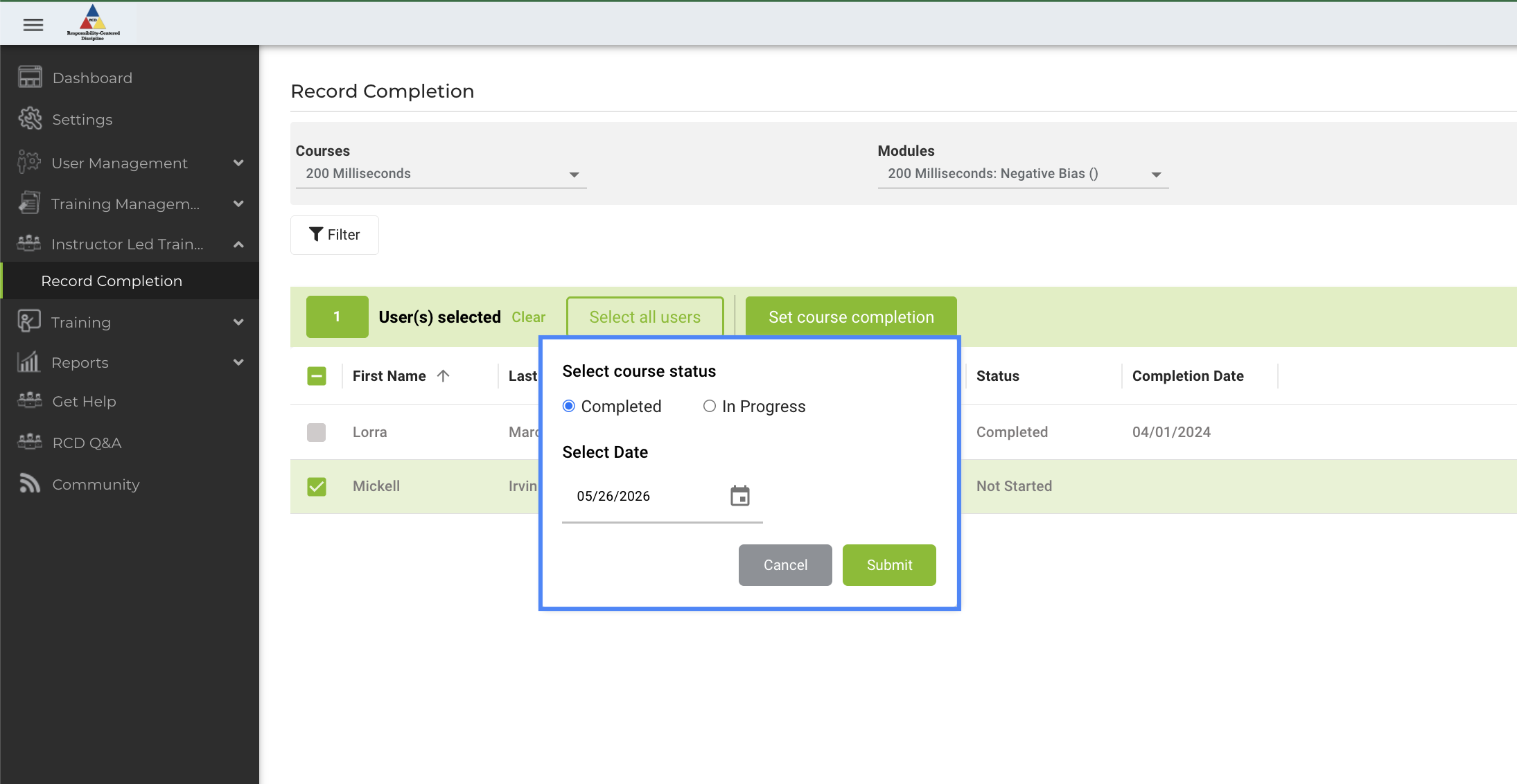

Repeat this process until all the desired courses and modules have been marked as completed.
Related Articles
How to Reset Training on AccuEd Connect
Knowing how to Reset Training is crucial for maintaining accurate statistics around the any person's training. This process doesn't delete past training but merely allows for Administrators and Report Managers to track the dates and times the ...How to View User Training Status
Keeping an eye on the training progress of your Users is important. Administrators and Report Managers have the ability to check on the progress of all Users on your site. Only Administrators and Report Managers can view User Training Status 1. Sign ...Setting Up an AccuEd Connect Account
You must have an account to use an AccuEd Connect site and take training courses. To get one you need to be invited by an Administrator on the site. Invites are sent out via email from "notifications@accuedconnect.app". Upon receiving an invite to an ...How to Create a User List for AccuEd Connect
Create a spreadsheet on Google or Excel with the necessary fields as headers in the specific order. First name, Last name, Username, Password, Email, Role, Location, Department, and Title. The columns for Username, Password, Department, Title, and ...How to Assign Courses
Depending on your chosen suite, you will have a list of courses that you will have access to. You will have the ability to assign each course to any User necessary. This simple process shows you how assign and unassign courses from yourself and ...