Setting Up an AccuEd Connect Account
You must have an account to use an AccuEd Connect site and take training courses. To get one you need to be invited by an Administrator on the site. Invites are sent out via email from "notifications@accuedconnect.app".
Upon receiving an invite to an AccuEd Connect Site you will have some steps to complete in order to use your schools site. Your site requires you to create a password and use your Username/Email to log in.
An Email with an invitation to sign into your AccuEd Connect site will pop up.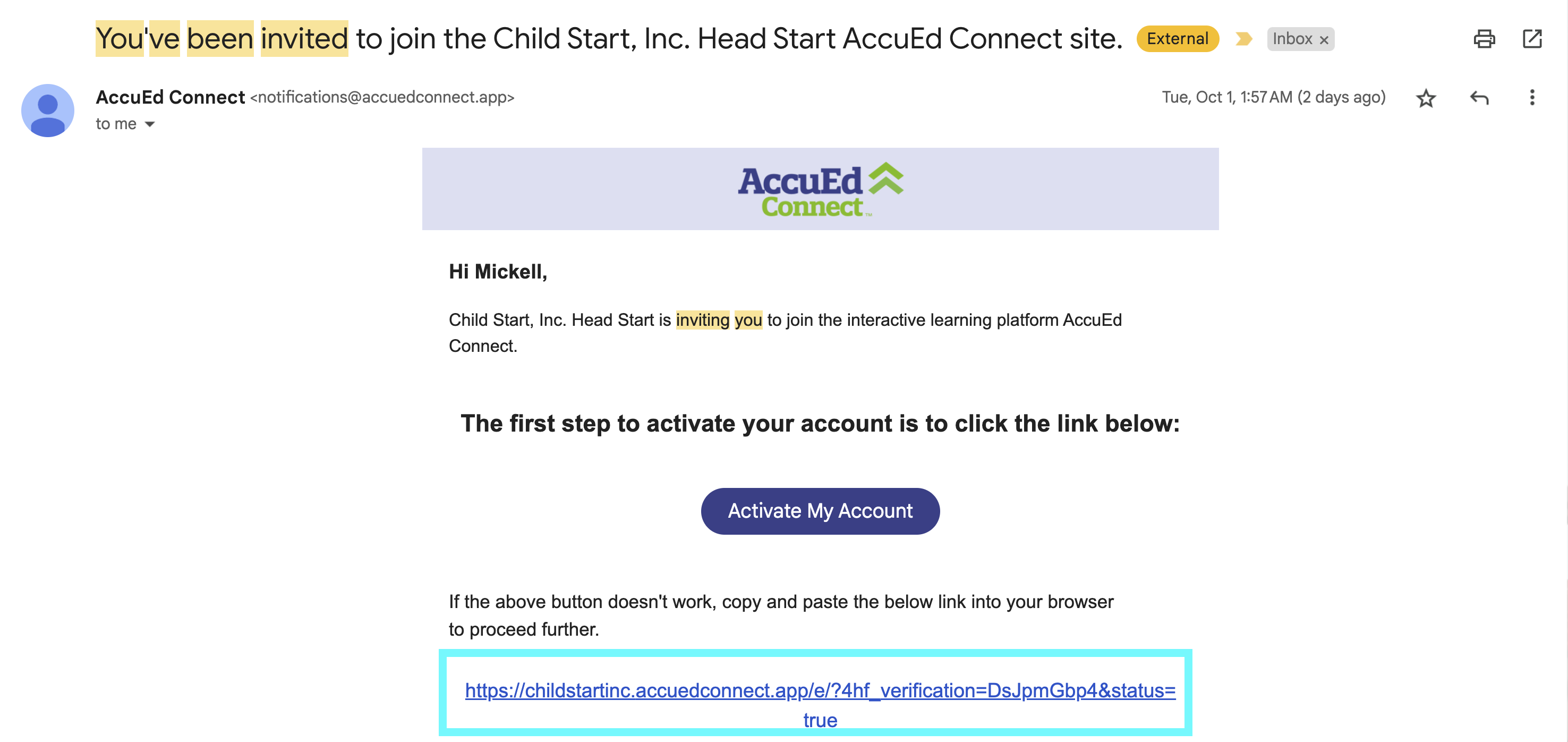
Click the link in the email to be led to your AccuEd Connect site.
a. Create a new Password for your AccuEd Connect account.b. Use the pre-registered email address and the new Password to log into your AccuEd Connect site.
 If unsure of what email to use, contact an Administrator.
In some cases, an Invite Code, located underneath the username portion, will be sent in the invite email. If this is the case then head directly to the AccuEd Connect site's URL.
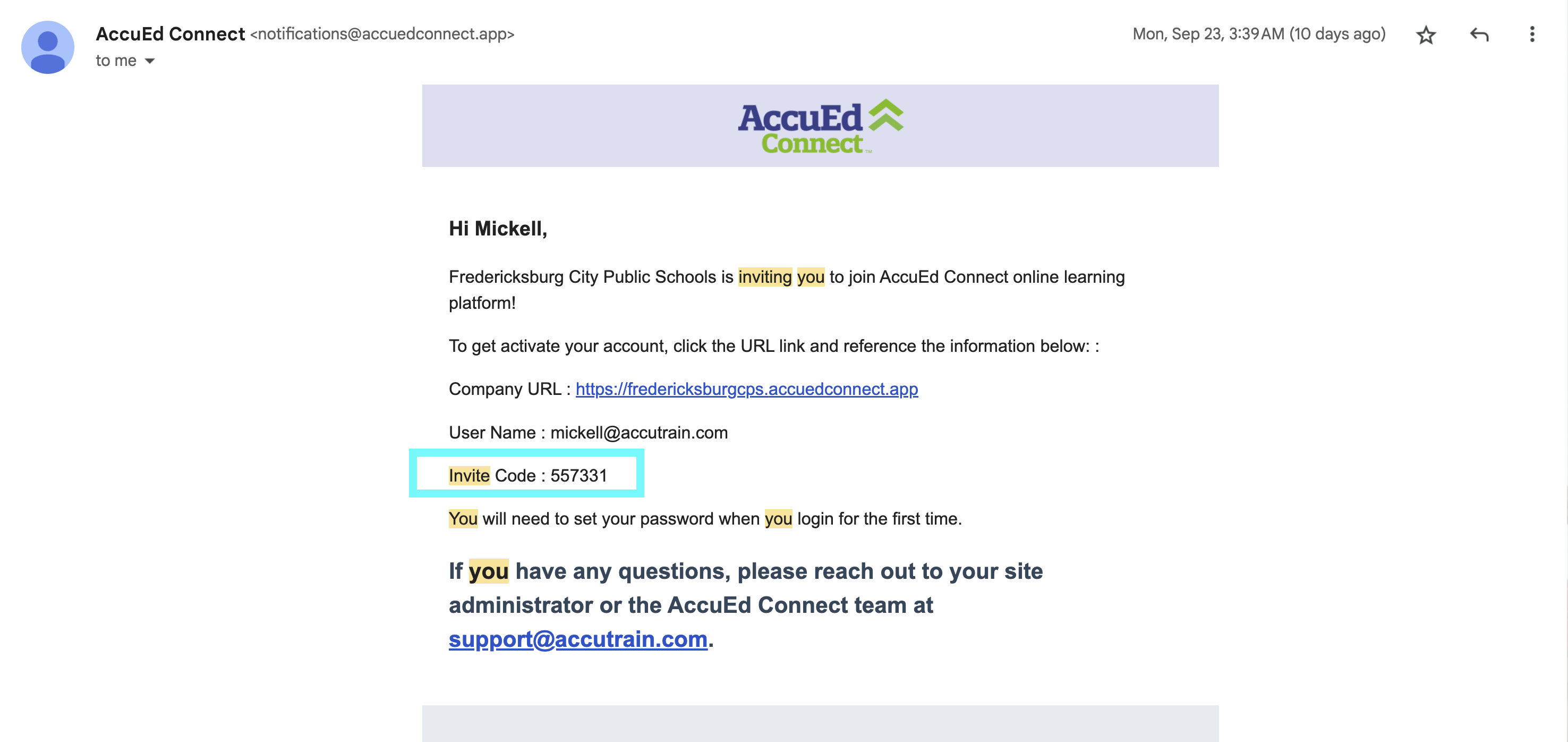
 If your email invite contains an Invite Code, then you must use it to register your AccuEd Connect account
Once on the AccuEd Connect site, select "Register with Invite Code", located at the bottom of the login page next to the "Forgot Password" button, to register your AccuEd Connect account.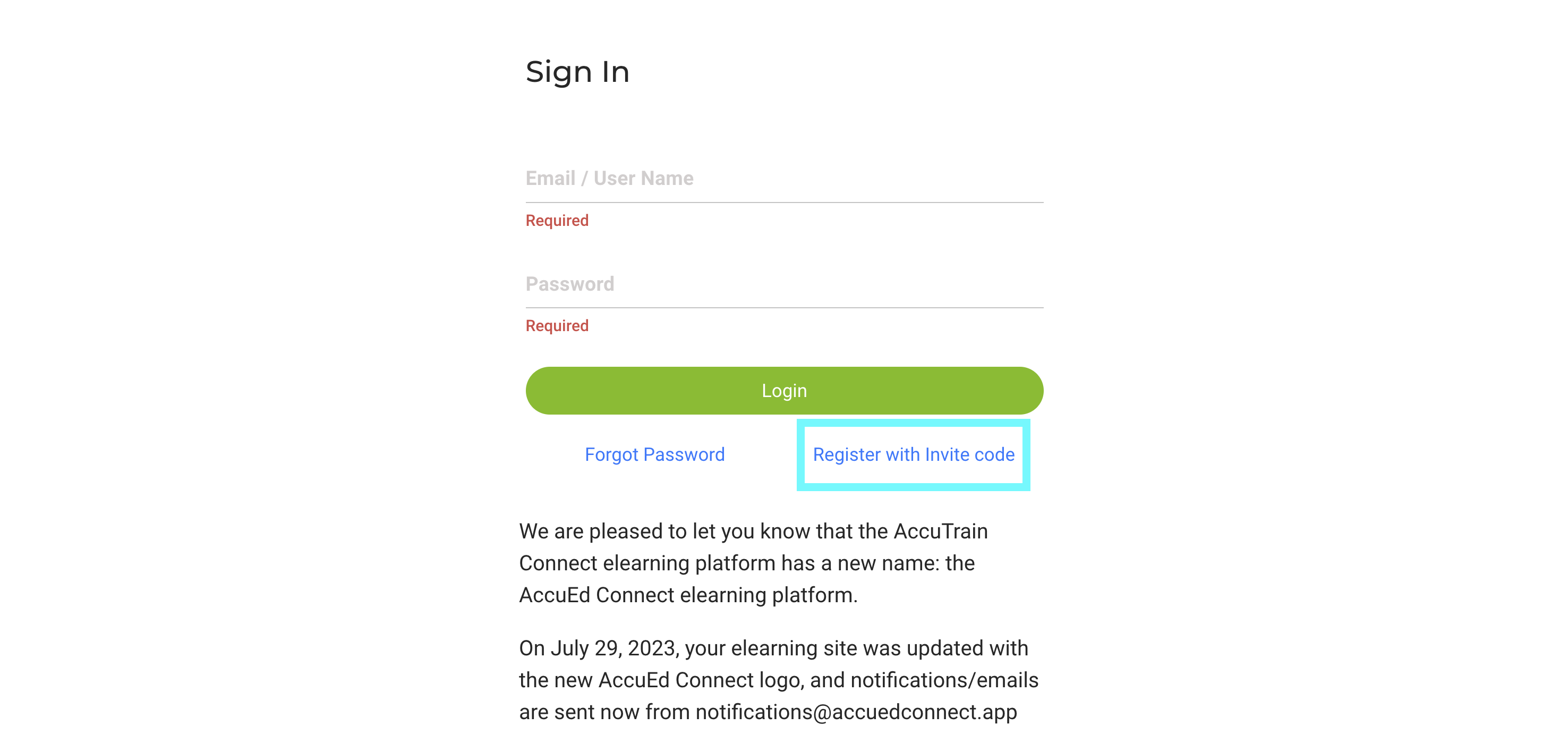
If you are having difficulties receiving an invite email or any other issues with this process, check with your school or district's IT department to see if emails from accutrain or notifications@accuedconnect.app are being blocked or please contact support@accutrain.com.
Related Articles
How to Reset Training on AccuEd Connect
Knowing how to Reset Training is crucial for maintaining accurate statistics around the any person's training. This process doesn't delete past training but merely allows for Administrators and Report Managers to track the dates and times the ...How to Find Courses on your AccuEd Connect Site
Looking for a specific course? Following the instructions below will let you see all of the courses specifically assigned to you. 1. Sign into the AccuEd Connect Site 2. On the left hand side select the “Training” tab. 3. A dropdown labeled “Courses” ...How to Cancel your AccuEd.com Subscription
Follow these steps below to Cancel your AccuEd.com Subscription. 1. Sign in to your AccuEd.com account. 2. Once logged in to your account, click on your Profile then, locate the "Dashboard" button at the top of the screen. 3. Once you're inside the ...Fixing Course Progress on AccuEd Connect
Course Progress is defined as what percentage of completion you have on your site. Keeping an accurate status of your Course Progress is important and without the correct information you may not be aware of your total training on the site. Below are ...How to Create a User List for AccuEd Connect
Create a spreadsheet on Google or Excel with the necessary fields as headers in the specific order. First name, Last name, Username, Password, Email, Role, Location, Department, and Title. The columns for Username, Password, Department, Title, and ...