How to Assign Courses
Depending on your chosen suite, you will have a list of courses that you will have access to. You will have the ability to assign each course to any User necessary. This simple process shows you how assign and unassign courses from yourself and others on the site.

Sign in to AccuEd Connect.
Click on “Training Management” on the navigation bar on the left-hand side of the screen.
A tab that says “Assignments” will drop down. Click on the tab to find all the available courses.
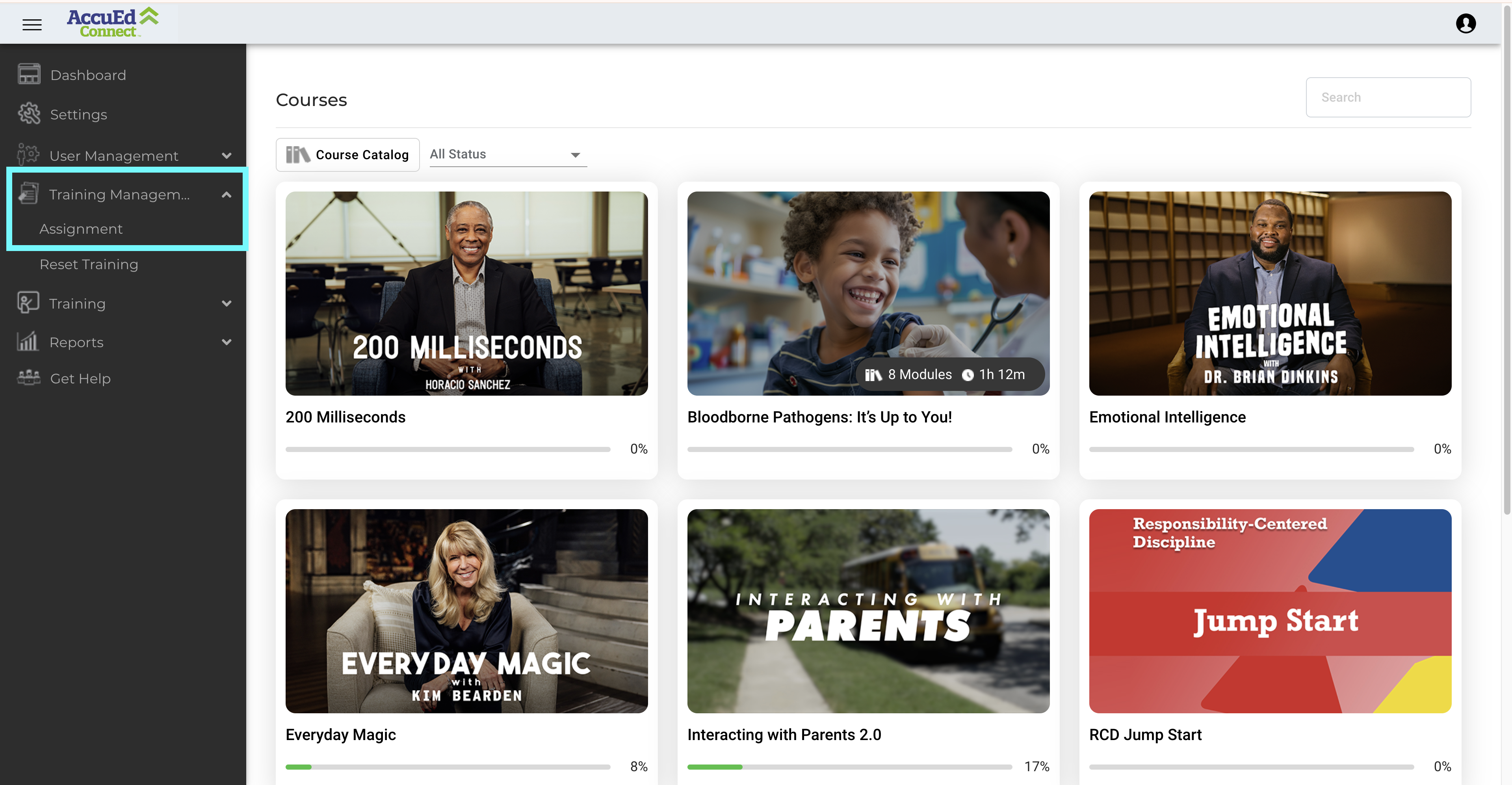
You can then select what courses to assign. (When a course has been selected the checkbox will turn from white to green.)

If a course cannot be found, use the Search Bar in the top right-hand corner to find the right course.
Once the course has been selected, in the top left of the screen you will see a drop-down box labeled "Actions". Click the drop-down box.

In the drop-down box, you will see the options for Assign Users, Unassign Users, Assign Groups, and Unassign Groups. Select the Assign Users or Assign Groups button.

Select the Users or Groups you would like to be assigned to the course and then click the green "Confirm" button located in the bottom right of the screen.


Related Articles
How to Find Courses on your AccuEd Connect Site
Looking for a specific course? Following the instructions below will let you see all of the courses specifically assigned to you. 1. Sign into the AccuEd Connect Site 2. On the left hand side select the “Training” tab. 3. A dropdown labeled “Courses” ...How to View Historical Learner Courses
Finding old training data for whatever the reason may be is important and we have made it possible after their training has been Reset. Only Administrators can find and obtain Learner Certificates 1. Sign in to AccuEd Connect. 2. Look for “Reports” ...How To Add New Groups
Groups are an immensely useful tool that can be utilized to help Administrators move a large number of Users or courses at one time. Groups allow an Administrator to give courses to many different users with only a few clicks instead of one at a ...How to Create a User List for AccuEd Connect
Create a spreadsheet on Google or Excel with the necessary fields as headers in the specific order. First name, Last name, Username, Password, Email, Role, Location, Department, and Title. The columns for Username, Password, Department, Title, and ...How to Use Instructor Led Training
Instructor Led Training is a useful tool used for auto-completing the training status of Users if you choose to watch any courses together at once using a single device. This feature allows any site Administrator to set any course as completed for ...