How to Reset Training on AccuEd Connect
Knowing how to Reset Training is crucial for maintaining accurate statistics around the any person's training. This process doesn't delete past training but merely allows for Administrators and Report Managers to track the dates and times the training was completed. Please follow the steps below to enact this process.

Only Administrators can Reset Training
1. Sign in to AccuEd Connect.
2. Look on the left-hand side of the screen and find where it says “Training management”. A dropdown that says “Reset Training” will appear. Click on it.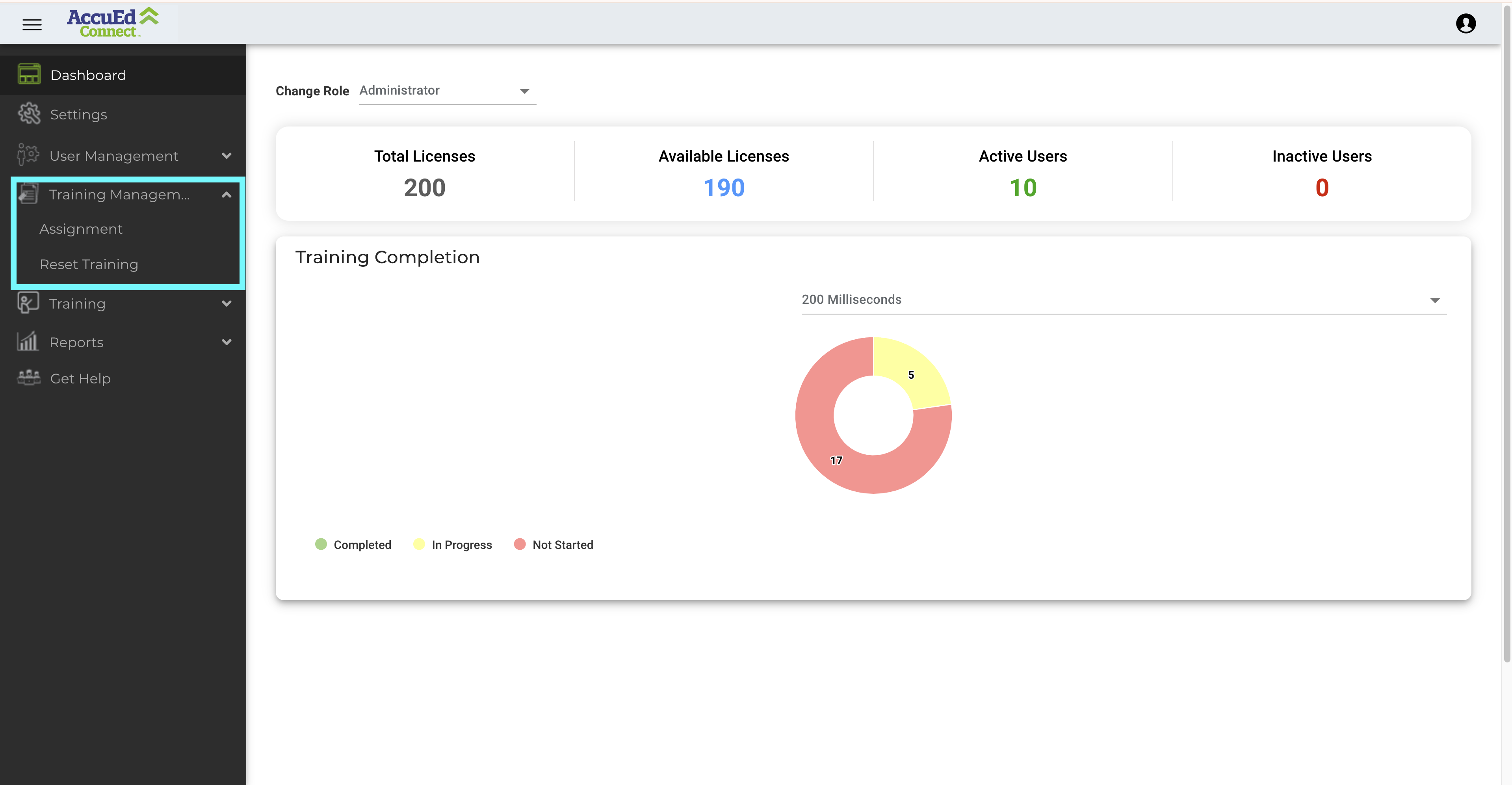
3. Once you have clicked on the dropdown, select the box under the word "Courses" on the screen.
4. A dropdown will appear with a list of the courses on your site. Select the course you would like to reset.

Only one course can be reset at a time
5. Once the course is selected, click the Checkbox next to the User(s) whose training progress is needed to be reset.
 To bulk reset, select the Checkbox next to the word "Name" or the "Select All Users" button. The box will have a green checkmark when it has been selected.
5. Once the green checkmark is visible next to the user name, click the Reset button in the top right-hand corner of the screen.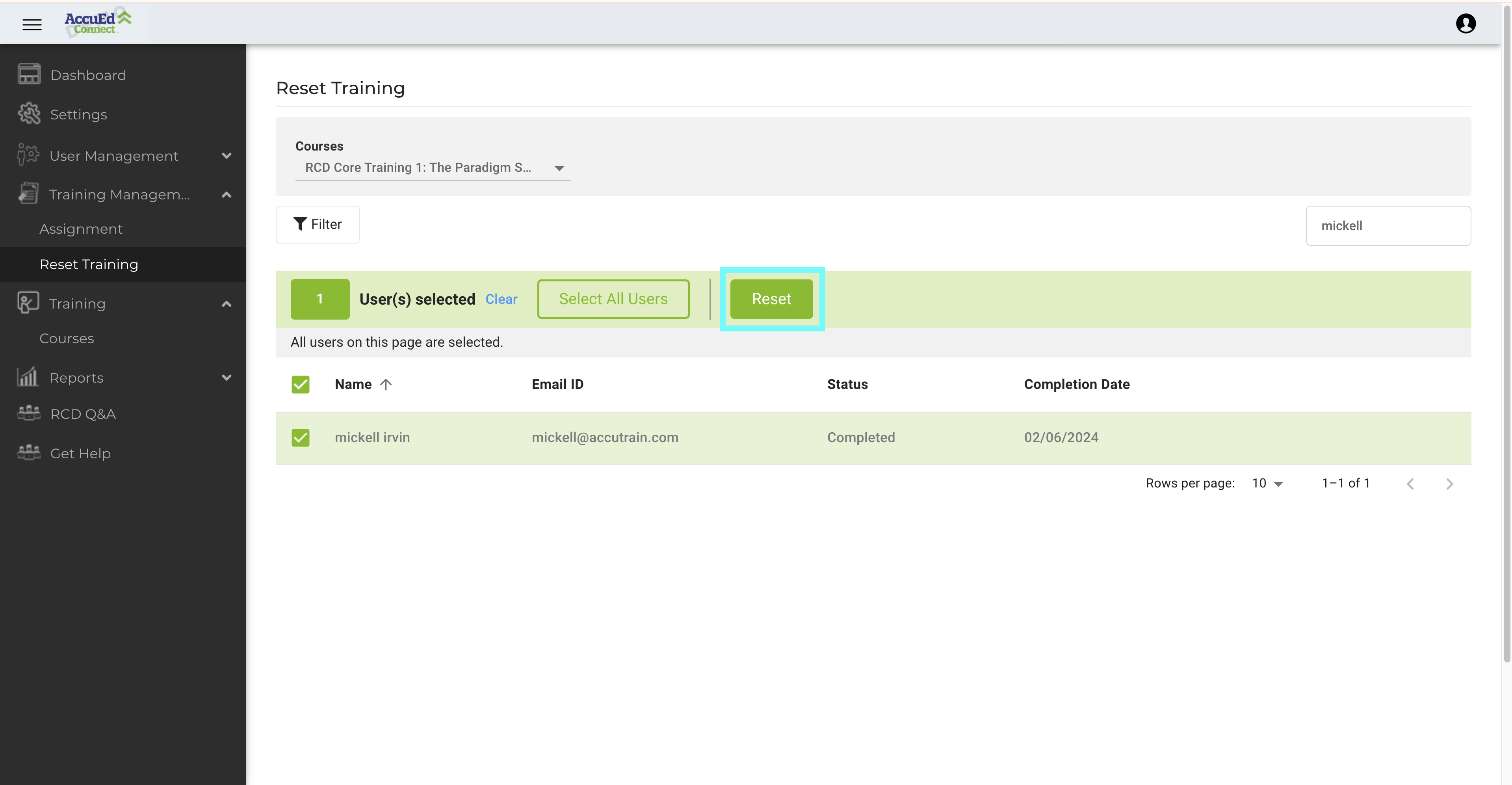
6. A prompt will appear on the screen asking you to confirm the training reset. Click OK. The user training for that course should be completely reset.
If the box next to the user name is gray, the user has not started the course, and there is no data to reset
If you require any help with this process please email support@accutrain.com for further assistance
Related Articles
Setting Up an AccuEd Connect Account
You must have an account to use an AccuEd Connect site and take training courses. To get one you need to be invited by an Administrator on the site. Invites are sent out via email from "notifications@accuedconnect.app". Upon receiving an invite to an ...How to Find Courses on your AccuEd Connect Site
Looking for a specific course? Following the instructions below will let you see all of the courses specifically assigned to you. 1. Sign into the AccuEd Connect Site 2. On the left hand side select the “Training” tab. 3. A dropdown labeled “Courses” ...How to View User Training Status
Keeping an eye on the training progress of your Users is important. Administrators and Report Managers have the ability to check on the progress of all Users on your site. Only Administrators and Report Managers can view User Training Status 1. Sign ...How to Use Instructor Led Training
Instructor Led Training is a useful tool used for auto-completing the training status of Users if you choose to watch any courses together at once using a single device. This feature allows any site Administrator to set any course as completed for ...How to View Historical Learner Courses
Finding old training data for whatever the reason may be is important and we have made it possible after their training has been Reset. Only Administrators can find and obtain Learner Certificates 1. Sign in to AccuEd Connect. 2. Look for “Reports” ...