How to Find Courses on your AccuEd Connect Site
Looking for a specific course? Following the instructions below will let you see all of the courses specifically assigned to you.
1. Sign into the AccuEd Connect Site
2. On the left hand side select the “Training” tab.
3. A dropdown labeled “Courses” should appear under the "Training" tab. (Highlighted in blue in the image)
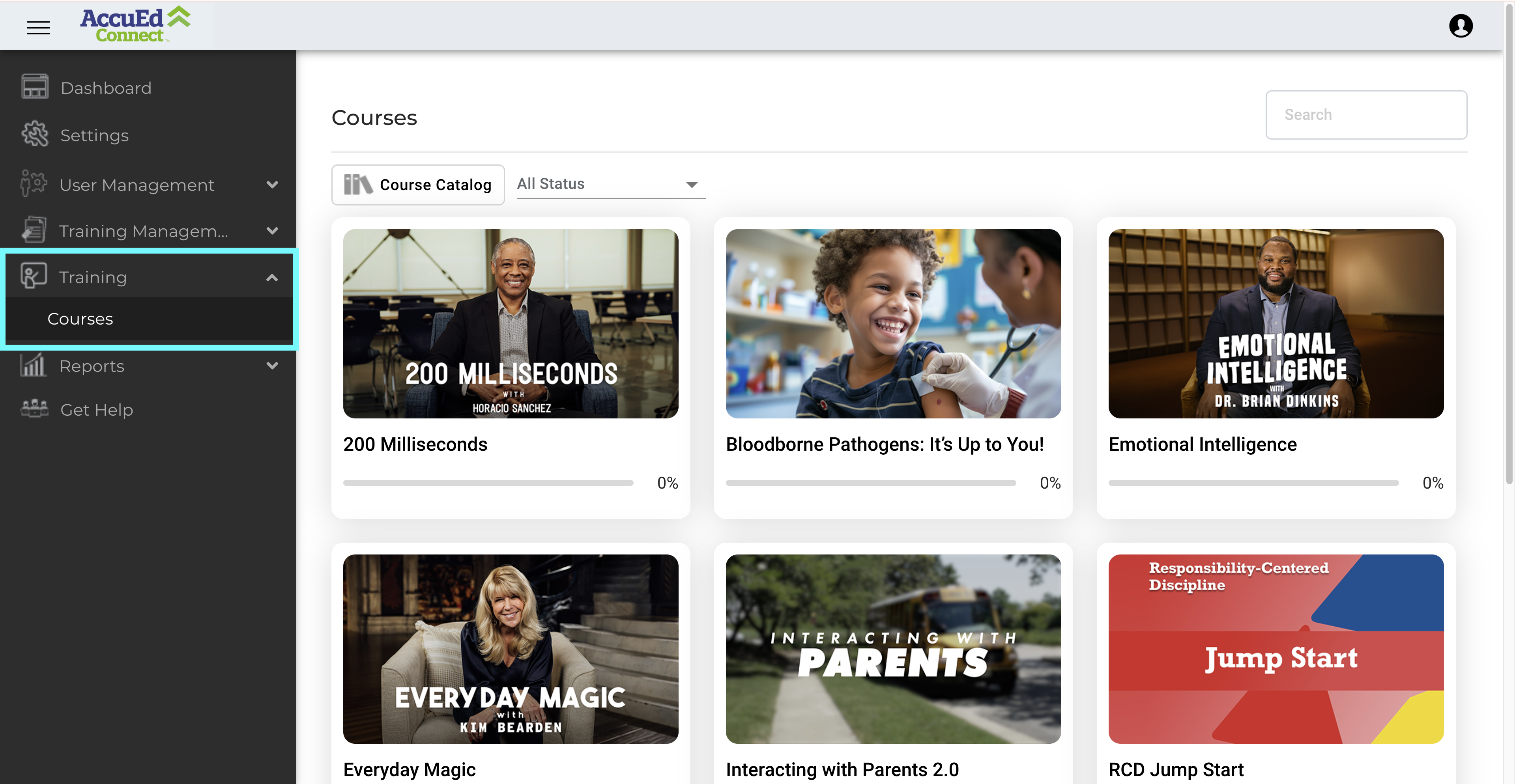
4. Click on the “Courses” dropdown. And then all your assigned courses will appear on the screen.
You can also find courses through our search bar and filter features. There are two ways you can filter courses, Progress and Category. Below are step-by-step instructions on the filter feature.
Filtering by Category
- Click on the "Courses" tab.
- Once you've clicked on the courses tab, look in the top right to find the "Course Catalog" button.
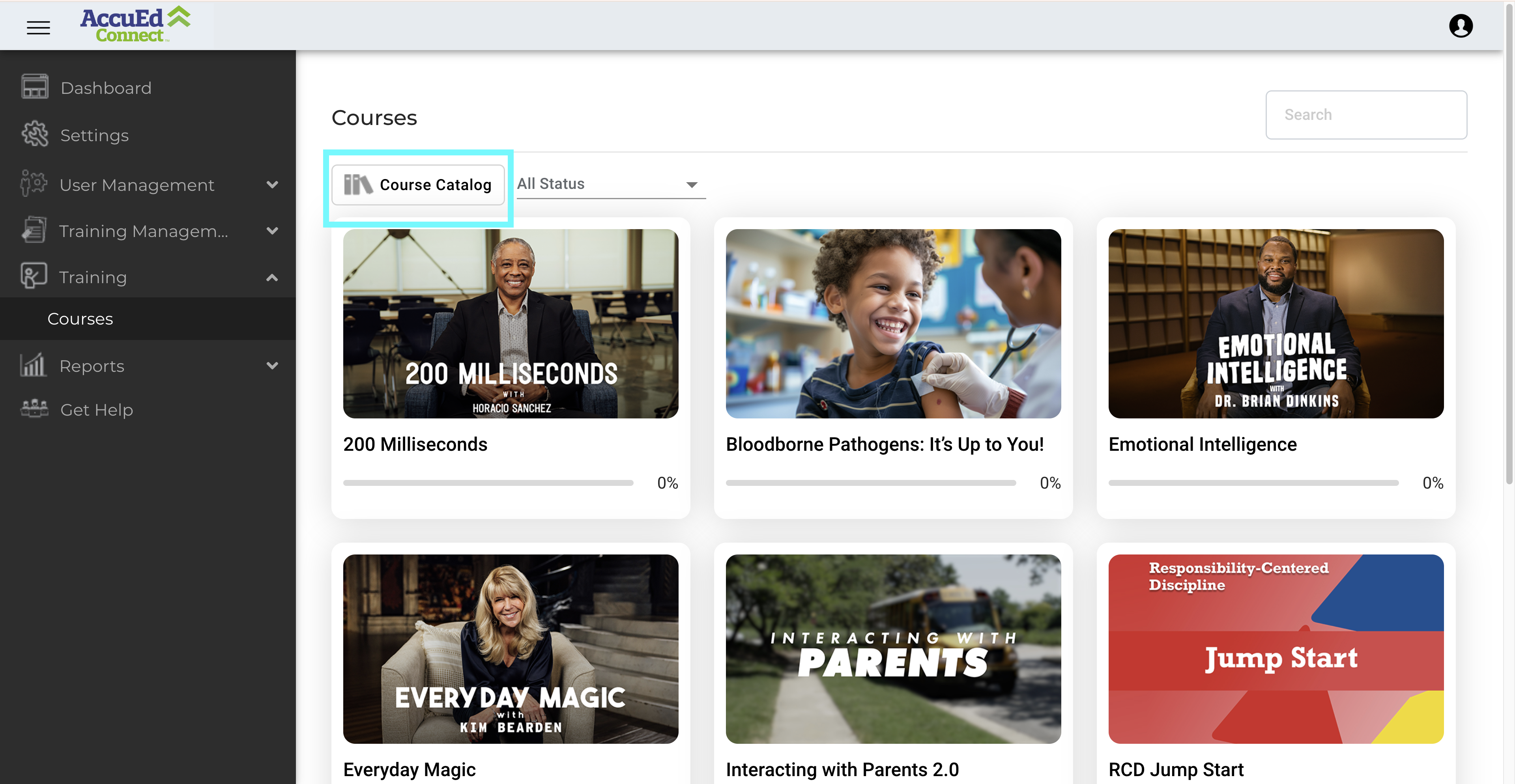
- Click the "Course Catalog" button.
- A drop-down will appear with categories to pick from. These categories are: Select All, Compliance Connect, ITS Connect, Bus Connect, SEL Connect, and RCD Connect.
- Click the box next to one of the categories to select it. The box will turn green. (You can select more than one category.)
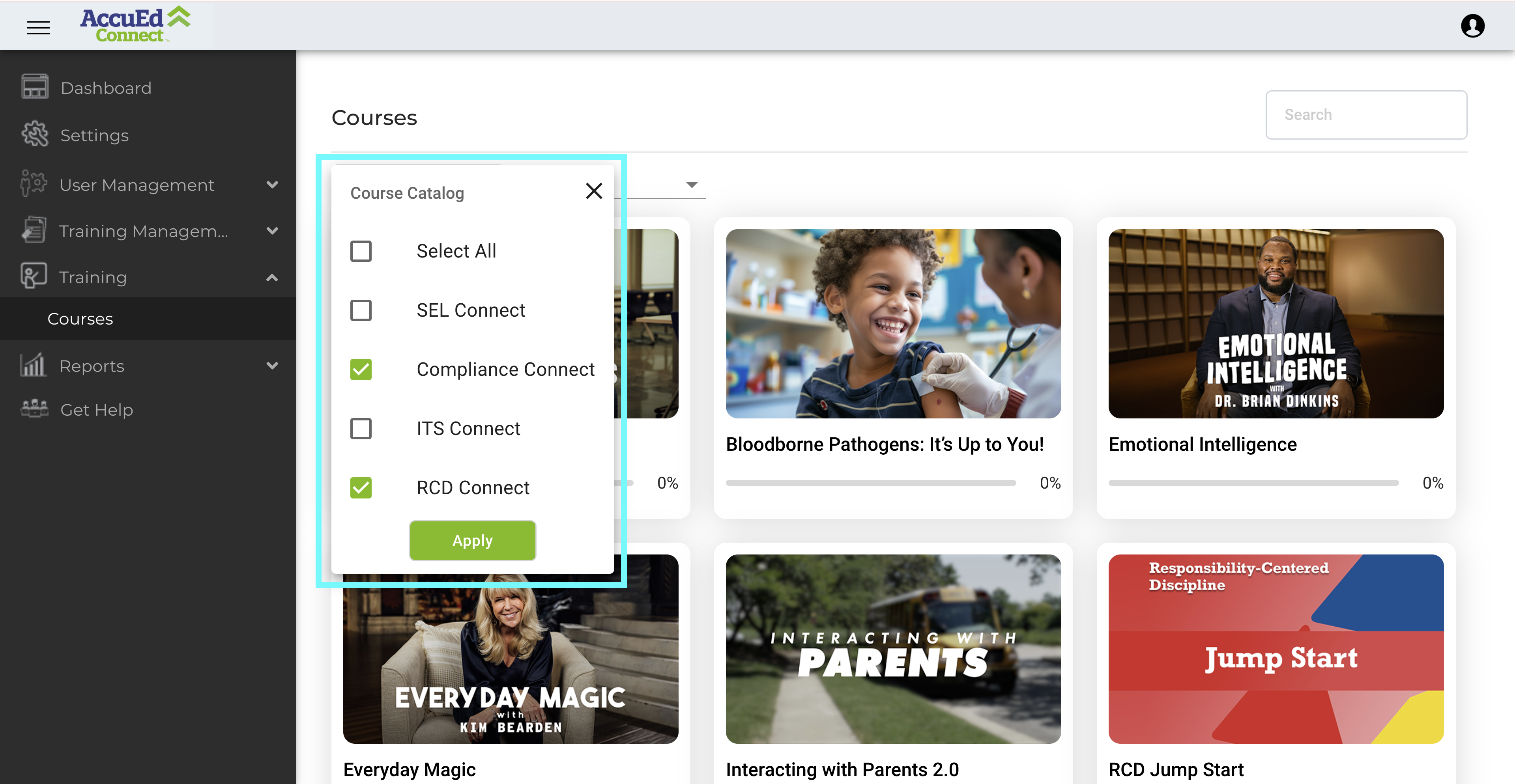
- Once your category is selected, the "Apply" button, which is located at the bottom of the drop-down, will turn blue.
- Click the "Apply" button.
- The courses you are assigned to that fall into those categories will appear for you to view.
Filtering by Progress
- Click on the "Courses" tab.
- Once you've clicked on the courses tab, look in the top right to find the "All Status" button.
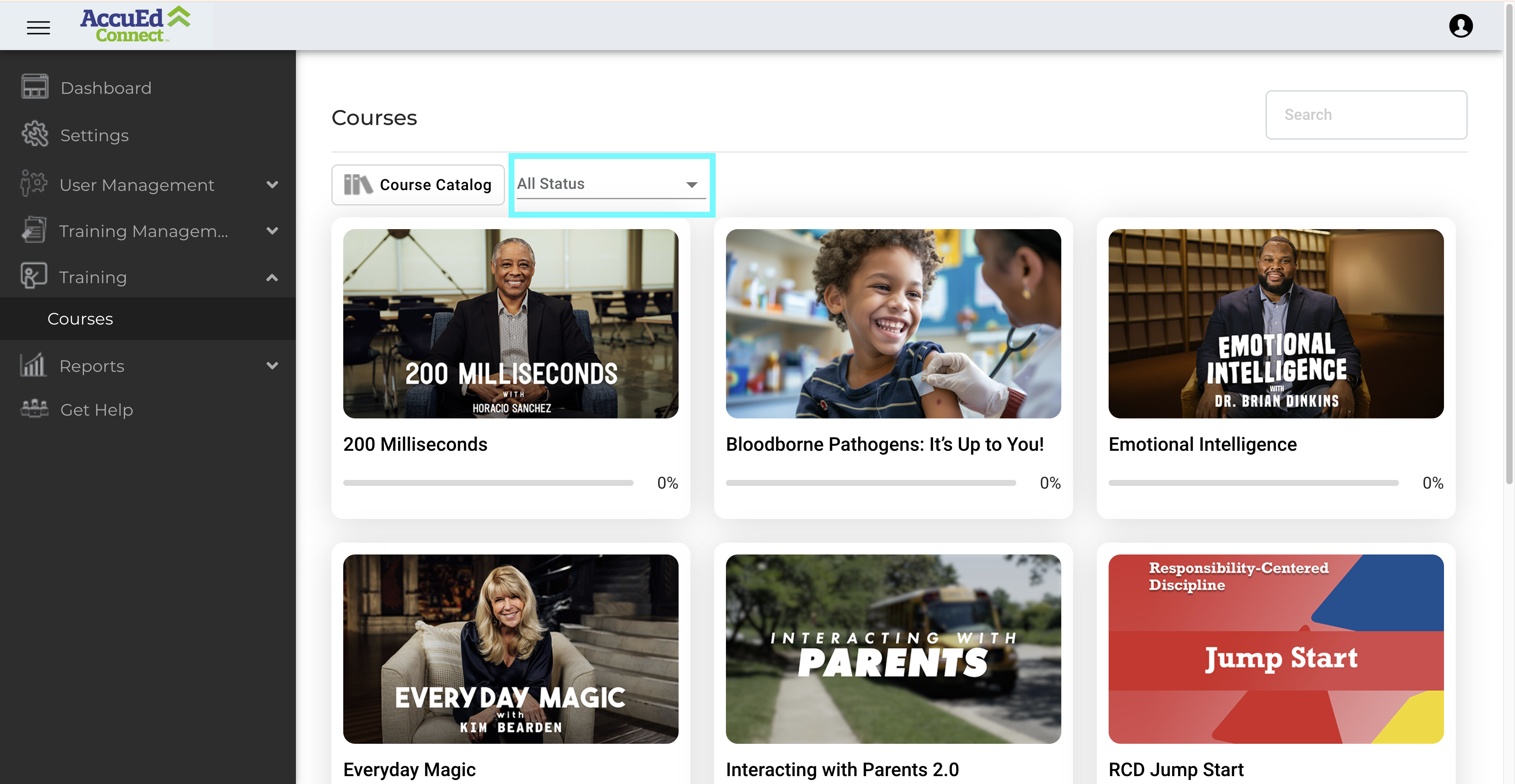
- Click the "All Status" button.
- A drop-down will appear with options to pick from. The options are: All Status, Start Now, In Progress, and Completed.
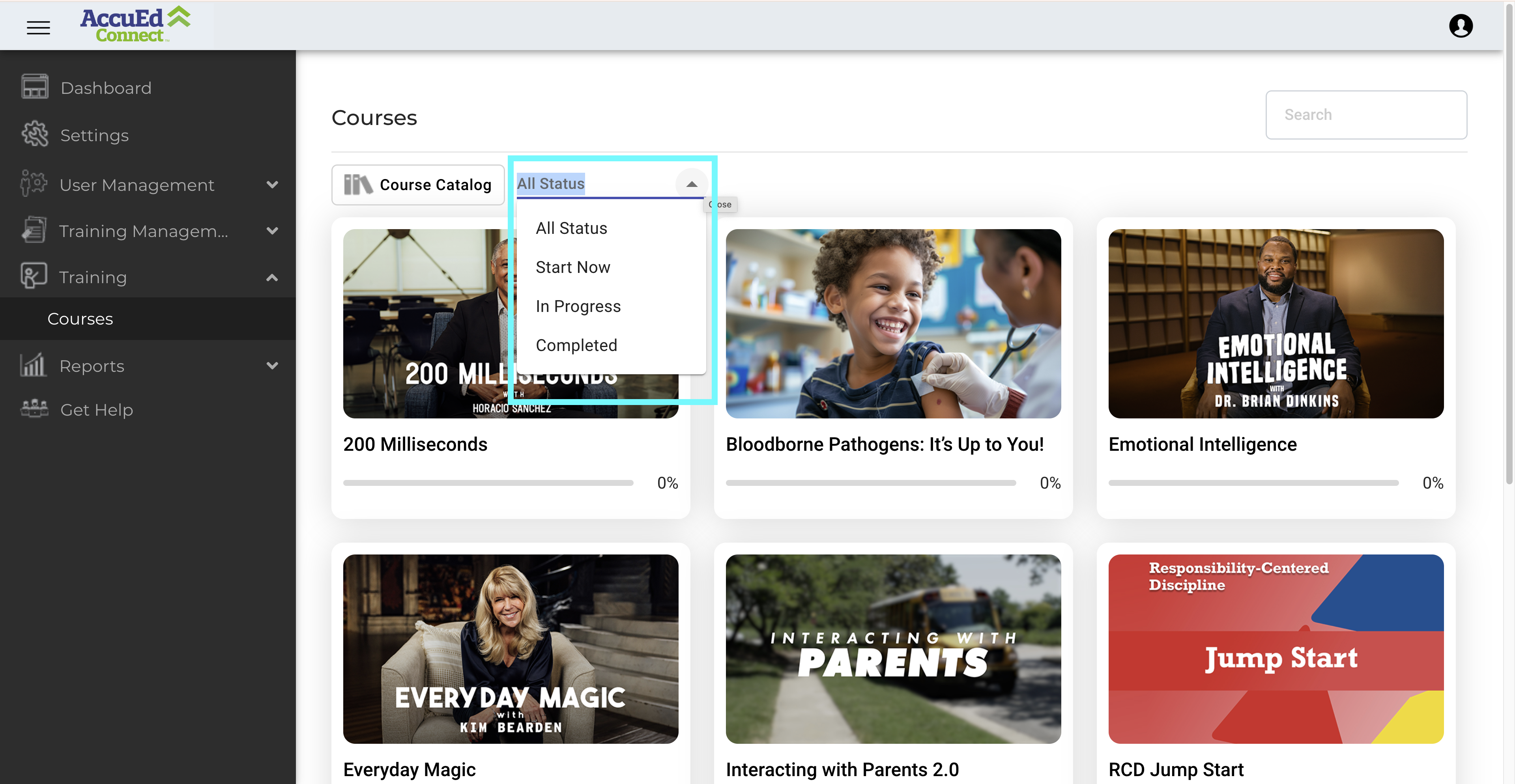
- Select one of the options.
- Your courses will be filtered.

If you are having issues with this process please reach out to support@accutrain.com for further assistance.
Related Articles
How to Reset Training on AccuEd Connect
Knowing how to Reset Training is crucial for maintaining accurate statistics around the any person's training. This process doesn't delete past training but merely allows for Administrators and Report Managers to track the dates and times the ...How to Assign Courses
Depending on your chosen suite, you will have a list of courses that you will have access to. You will have the ability to assign each course to any User necessary. This simple process shows you how assign and unassign courses from yourself and ...How to Find Learner Course Progress
Learner Course Progress is one of three ways an Administrators can keep an eye on the progress of training on their site. This Report tells you when the course has been started, finished, and how long it took to complete under each User. Only ...Setting Up an AccuEd Connect Account
You must have an account to use an AccuEd Connect site and take training courses. To get one you need to be invited by an Administrator on the site. Invites are sent out via email from "notifications@accuedconnect.app". Upon receiving an invite to an ...How to View Historical Learner Courses
Finding old training data for whatever the reason may be is important and we have made it possible after their training has been Reset. Only Administrators can find and obtain Learner Certificates 1. Sign in to AccuEd Connect. 2. Look for “Reports” ...